
Overview: What You’ll Set Up
To get started with SKUtrak Promote, complete the following steps:
- Connect retailer data sources
- Ensure product mapping is up to date
- Share your historical promotional calendar
- (Optional) Load cost and pricing information
- Start creating and analysing promotions in Promote
Step 1: Connect Retailer Data Sources
Before you can analyse or forecast promotions in SKUtrak Promote, your retailer data must be connected. This ensures Promote has access to the sales, pricing, and promotion signals required to generate insights and uplift forecasts.
Without active retailer data, Promote will not be able to evaluate promotional effectiveness or produce reliable forecasts.
What you need to do:
- Confirm which retailers you want to use in SKUtrak Promote.
Most trials begin with 1–2 retailers to keep the setup simple and focused.
1. Check your retailer data sources in Crisp SKUtrak:
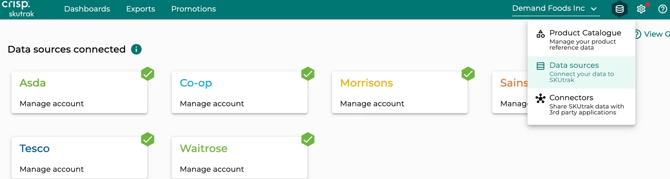
- Navigate to Data Sources
- Confirm the relevant retailer sources are enabled
- Check that data is actively refreshing and not showing errors
2. Confirm data freshness from the Home page summary dashboard, to verify that:
- Recent sales data is visible
- The correct retailer accounts are included
If data is missing, delayed, or incomplete, it must be resolved before continuing.
What this enables:
Once retailer data is connected, SKUtrak Promote can:
- Ingest historical and ongoing sales and pricing data
- Link promotions to in-store performance
- Support promotion modelling and forecasting
For more details, see: About data sources
Step 2: Ensure Your Product Mapping Is Up to Date
Product mapping is critical for using SKUtrak Promote. If products are not correctly mapped to retailer listings, they cannot be used in promotion setup, analysis, or forecasting.
This is the most important product-related check before using SKUtrak Promote.
What you need to do:
- Open Retailer Mappings:
In Crisp SKUtrak, go to: Product Catalogue - Retailer Mappings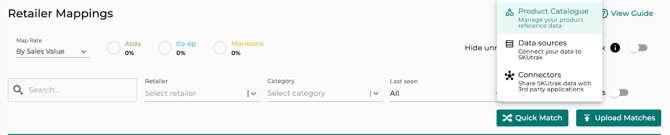
- Check for products in the Pending section; any products listed here are not yet mapped to your internal code items.
- For each pending product, add the correct mapping to your master product.
All products you want to include in SKUtrak Promote must be mapped before they can be selected in promotions.
What this enables:
Once product mappings are complete:
- Products can be selected when creating promotions
- Performance can be accurately attributed to promotions
- Forecasts and uplift modelling will include the correct products
For more guidance, see: Getting started with product data management
Step 3: Share Your Historical Promotional Calendar
To get value from SKUtrak Promote as quickly as possible, start by loading your historical promotion data. This allows you to:
- Immediately analyse how past promotions have performed
- Provide uplift models with the historical context needed for accurate forecasts
Promotion calendar file
For the strongest early insights and forecast accuracy, we recommend sharing a promotional calendar that includes:
- At least 1 year of historical promotional data
- All retailers included in your trial scope
- all product categories included in your trial scope
If you’re unsure what to include, start with your best available data, you can always enhance it later.
We provide an example upload file that shows:
- Required fields
- Recommended best-practice fields that improve insights and forecasting
Note: If you’re having trouble getting your data into the required structure, that’s okay. Share what you have with the Crisp SKUtrak team, and we can handle the transformations required to load it.
Don’t have historical promo data?
If historical promotion data is incomplete or unavailable, you can still proceed. Options include:
- Using SKUtrak’s promotion detection feature to create a calendar from scratch
- Focusing on forward-looking promotion planning
The goal is to get you to useful insights quickly, even if your data isn’t perfect on day one.
Step 4 (Optional): Load Cost & Pricing Information
While not required to start using SKUtrak Promote, adding cost and pricing data unlocks deeper insights into promotion profitability and ROI.
How to upload this information:
- Please visit the Product Catalogue and go to the Prices and Terms section.
- The upload templates are included in the same spreadsheet above (example upload file).
- Further details can be found here.
What you can load:
You may choose to load:
- List price
- Terms
- Cost price
This data can be uploaded or maintained alongside your product and pricing data in Crisp SKUtrak.
What this enables:
With cost and pricing data available, SKUtrak Promote can:
- Estimate promotional margin impact
- Support ROI-based promotion evaluation
- Improve decision-making when comparing promotion scenarios
This step is optional, but strongly recommended for teams focused on profitability and trade optimisation.
Step 5: You’re Ready to Get Started in Promote
Once:
- Retailer data is connected
- Product mappings are complete
- Promotional history is available
…you’re ready to start using SKUtrak Promote.
Next steps:
- Create your first promotion
- Analyse and understand historical promotion performance
- Explore optimisation recommendations
To continue, see:
- Creating promotions in SKUtrak Promote
- Understanding promotion performance
- Optimising promotions with Promote